
Choosing a Topic
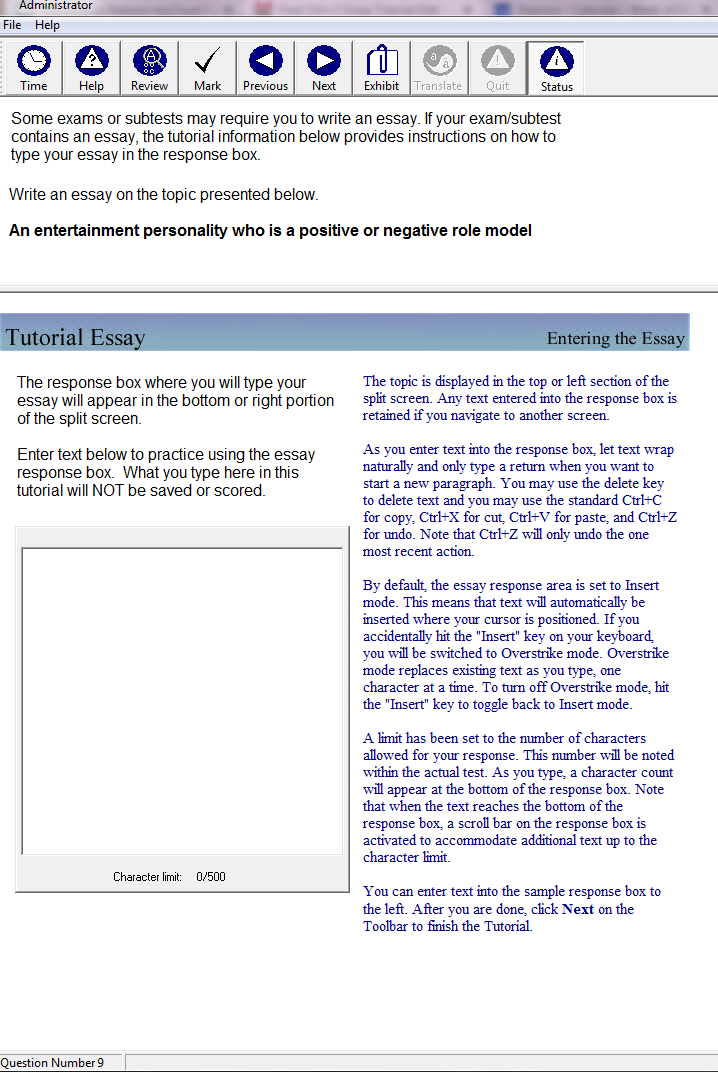
The test toolbar has icons and labels for time, help, review, mark, previous, next, exhibit, translate, quit, and status.
Some exams or subtests may require you to write an essay. If your exam/subtest contains an essay, the tutorial information below provides instructions on how to type your essay in the response box.
Write an essay on the topic presented below.
An entertainment personality who is a positive or negative role model
Instructions are shown above a text input box, referred to as the essay response box, reading colon
The response box where you will type your essay will appear in the bottom portion of the split screen.
Enter text below to practice using the essay response box. What you type here in this tutorial will start uppercase NOT end uppercase be saved or scored.
There is a character counter in the footer of the essay response box that reads: Character limit colon 0 forward slash 500
The presentation explains:
The topic is displayed in the top or left section of the split screen. Any text entered into the response box is retained if you navigate to another screen.
As you enter text into the response box, let text wrap naturally and only type a return when you want to start a new paragraph. You may use the delete key to delete text and you may use the standard Ctrl+C for copy, Ctrl+X for cut, Ctrl+V for paste, and Ctrl+Z for undo. Note that Ctrl+Z will only undo the one most recent action.
By default, the essay response area is set to Insert mode. This means that text will automatically be inserted where your cursor is positioned. If you accidentally hit the "Insert" key on your keyboard, you will be switched to Overstrike mode. Overstrike mode replaces existing text as you type, one character at a time. To turn off Overstrike mode, hit the "Insert" key to toggle back to Insert mode.
A limit has been set to the number of characters allowed for your response. This number will be noted within the actual test. As you type, a character count will appear at the bottom of the response box. Note that when the text reaches the bottom of the response box, a scroll bar on the response box is activated to accommodate additional text up to the character limit.
You can enter text into the sample response box to the left. After you are done, click Next on the Toolbar to finish the Tutorial.